LittleSaving user guide
Everything you need to get started — read it in order, or jump to the part you need.
1. What is LittleSaving?
LittleSaving is a money book for the whole family: everyone records into shared wallets, and each person can still keep private wallets. The app tells you how much your household has, where this month’s money went, how much you can still spend today and what is coming due.
- Wallets are where money sits: cash, bank accounts, e-wallets, credit cards, savings deposits…
- Transactions are each time money comes in (income), goes out (expense) or moves between two wallets (transfer).
- Categories say what an expense was for (Food & Drinks, Transport…) — used by reports and budgets.
- Your household is your home in the app. Currency, default language and time zone are set per household.
The first time you open each page, the app shows a few short tips. To see them again: Settings → Guide → Replay guide. The (i) icon next to a term gives you a short explanation.
2. Get started in 5 minutes
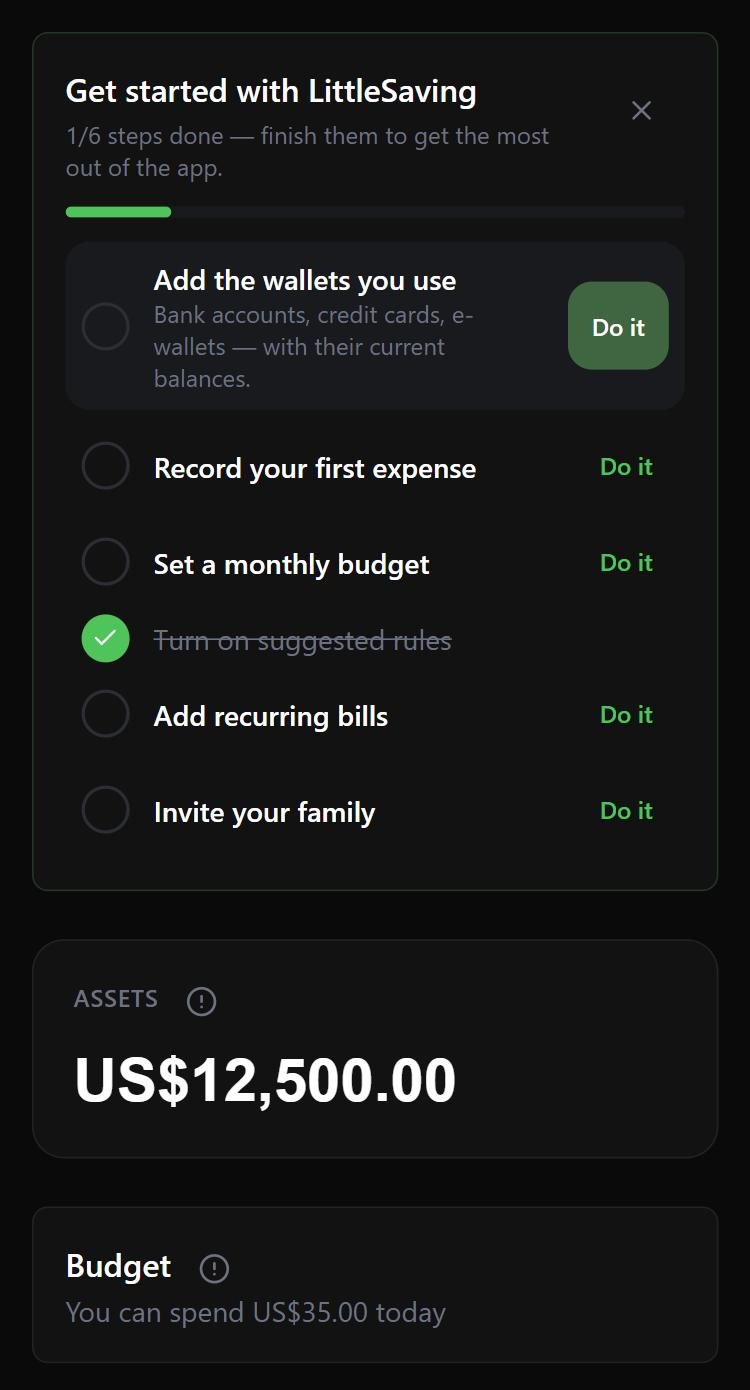
The Overview page has a “Get started with LittleSaving” card — steps tick themselves off as you finish them:
- Add the wallets you use (Wallets page) with their current balance. For a credit card, enter the current balance owed as a positive number — the app knows it is debt.
- Record your first expense: tap + and type like a text message, e.g. “coffee 4.50”.
- Set monthly budgets for your main spending groups.
- Turn on the suggested rules so the app categorises for you.
- Add recurring bills: rent, power, water, school fees…
- Invite your family (Family plan).
Light / dark theme and language
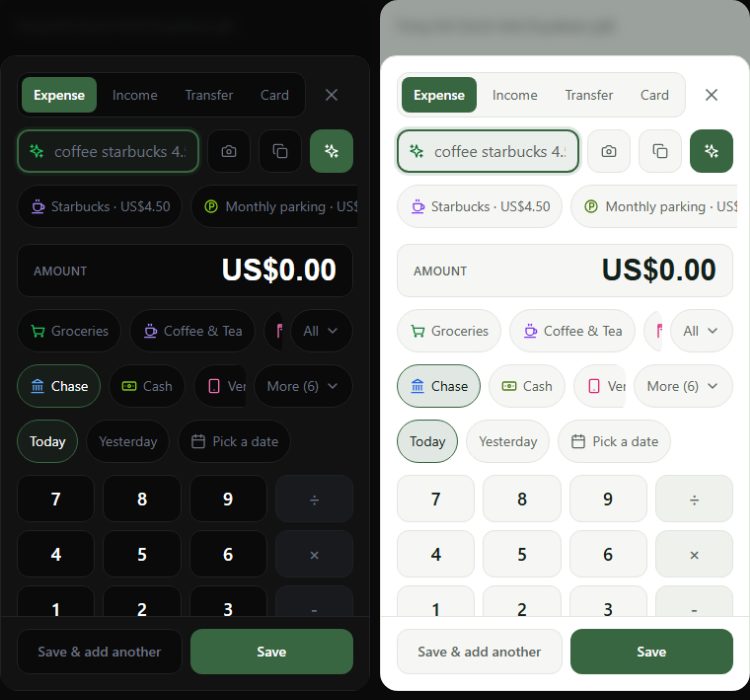
Go to Settings → Appearance and pick one of four:
- Dark (default) · Light · Match device · Auto by time (light from 6:00, dark from 18:00 — adjustable).
- Your choice is saved to your account, so it follows you to another device.
- Language: Settings → Language — Tiếng Việt, English, 日本語, 中文, 한국어. Each family member picks their own.
3. Recording spending fast (Quick Add)
Tap the + button (middle of the bottom bar on a phone, top right on a computer, or press N) on any page.
Type it like a message
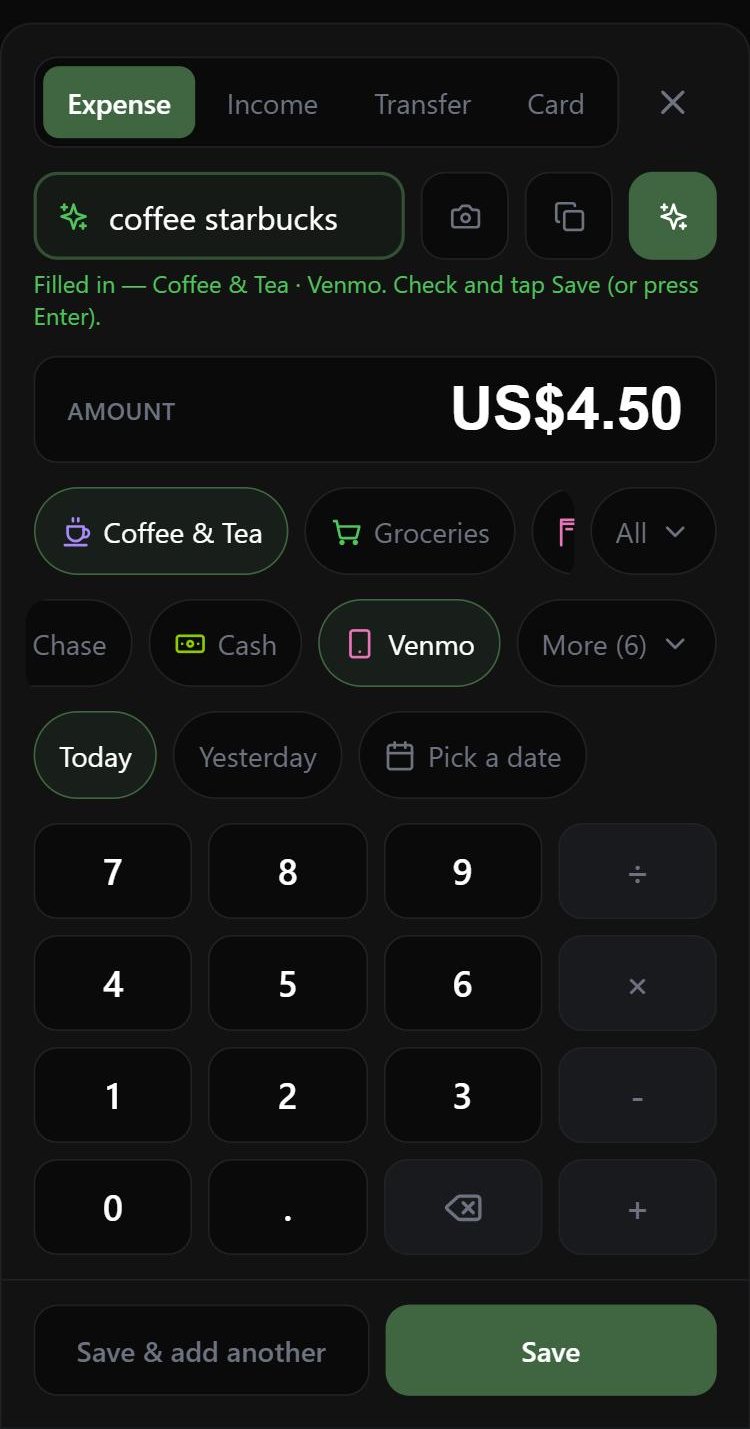
- “coffee starbucks 4.50” → 4.50, category Coffee & Tea, note “coffee starbucks”.
- “salary 3000” → income of 3,000. “1.2k” = 1,200.
- “fuel 40 chase” → recorded in your Chase wallet. “yesterday”, “9/20” → changes the date.
- Press Enter to let the app fill in, then Enter again to save.
Amounts are in your household’s currency (set when the household was created). Dates follow your household’s date order — month/day in the US, day/month in most other countries.
Other ways to enter
- Number pad: you can type sums like 12+3.5. Hold the delete key to clear.
- Frequent entries: things you record again and again appear as buttons under the input — one tap fills everything.
- Paste a bank SMS (copy button) — the app reads the amount and description.
- Scan a receipt (camera button, plans with AI) — the app reads the total, shop and date; fields it is unsure about get a yellow border for you to check.
Wallet and category picked for you
The app learns your own habits: the wallets you use most come first, and choosing a category switches to the wallet you usually use for it (groceries → cash, fuel → card…). If two family members have wallets with the same name (say, Dad’s Chase and Mum’s Chase), typing “chase” picks yours. Other people’s wallets are under “More”.
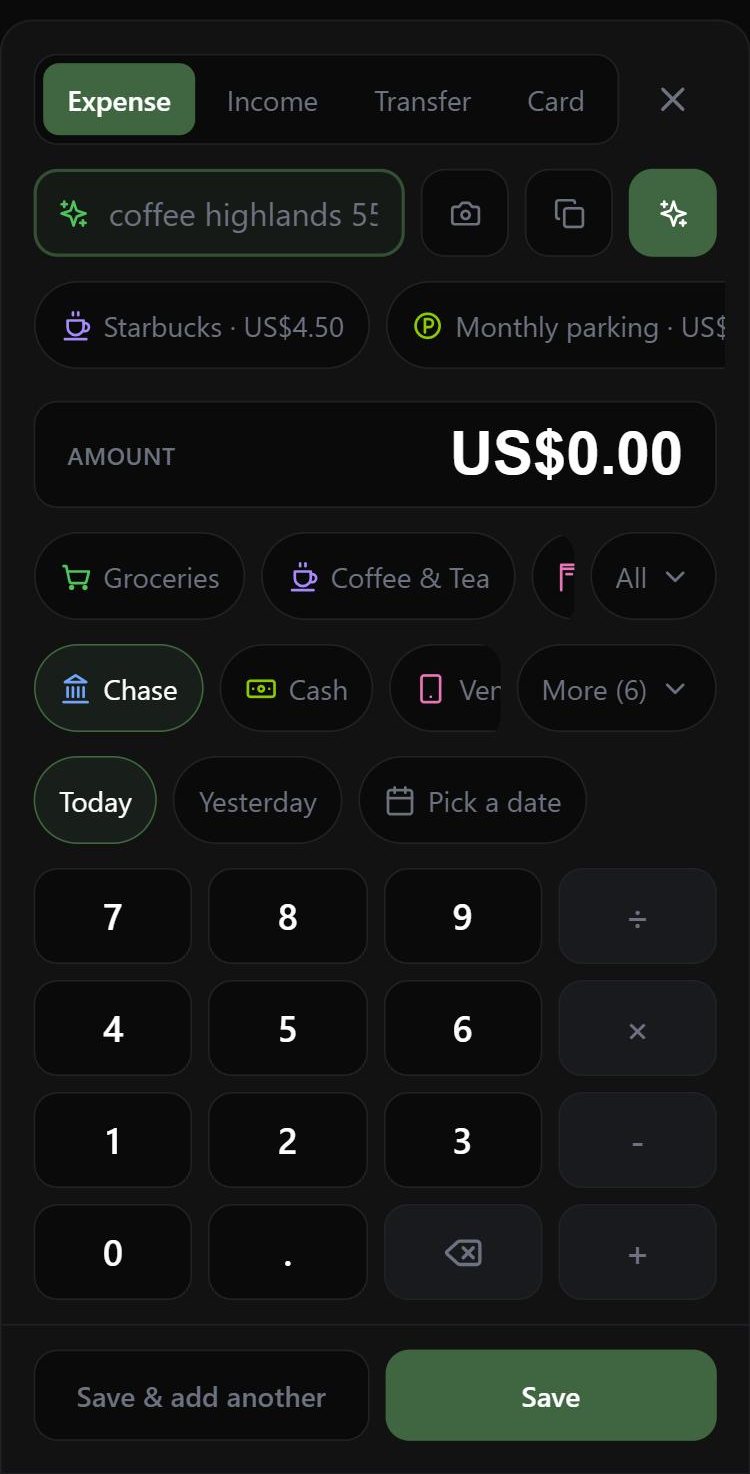
Expense · Income · Transfer · Card
- Transfer: move money between two household wallets (ATM withdrawal, topping up an e-wallet). If the wallets use different currencies, enter the rate or the amount received.
- Card: pay a credit card and enter statements (see Credit cards).
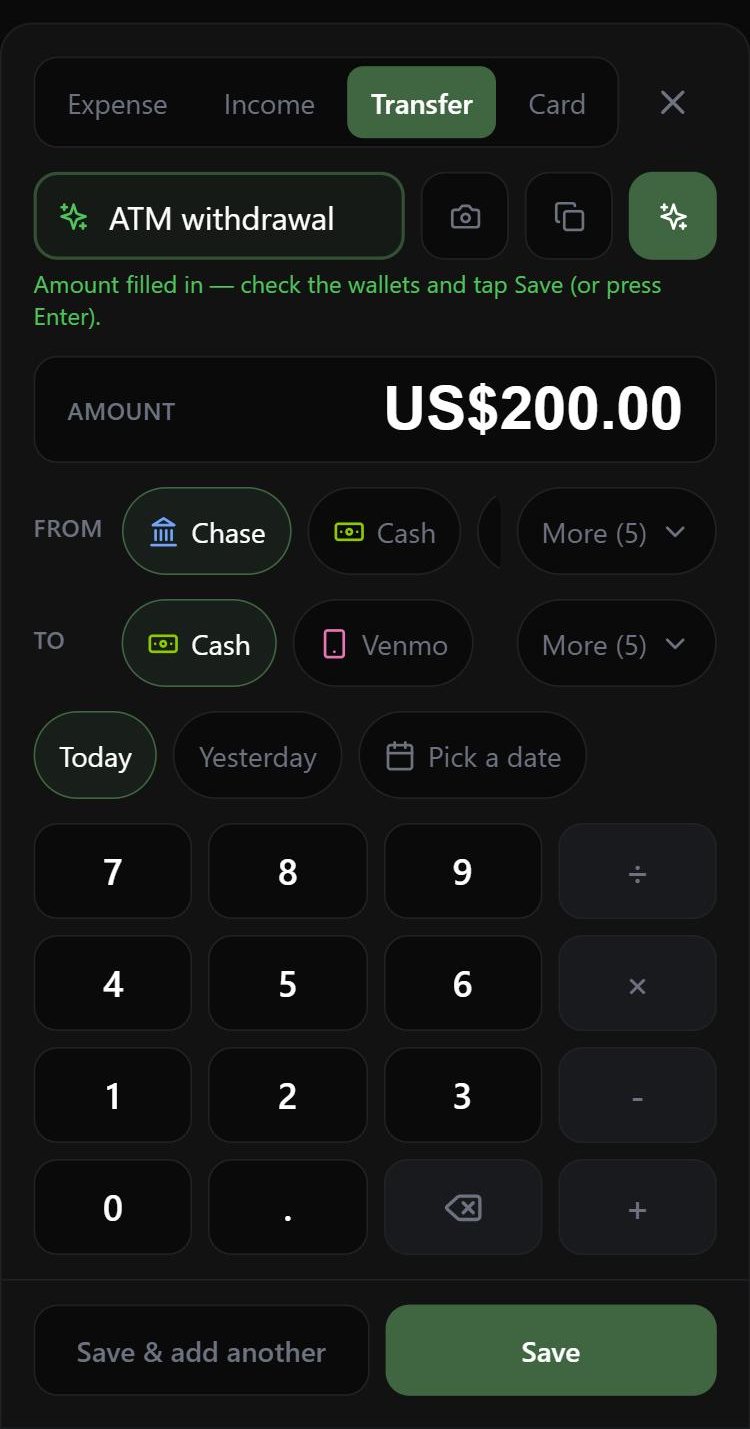
After saving there is an Undo button for 5 seconds in case of a slip. On a computer, Quick Add shows only the quick input; when the app can fill everything in you see a one-line summary and Save, and the details open only when it can’t.
When you are offline
Keep recording as usual. An “Offline” bar appears at the top; what you save waits in a queue on your device and shows on Transactions as pending.
Back online, the app sends it automatically and says “Sent n transactions recorded offline”. Editing and deleting need a connection.
Example: in an underground car park you record “parking 5” → once you have signal again it lands in the family book by itself.
4. Transactions, refunds and search
The Transactions page lists everything by day, with income / spending totals per day. Filter by period, type, wallet, category and amount; search ignores accents (“an trua” matches “ăn trưa”).
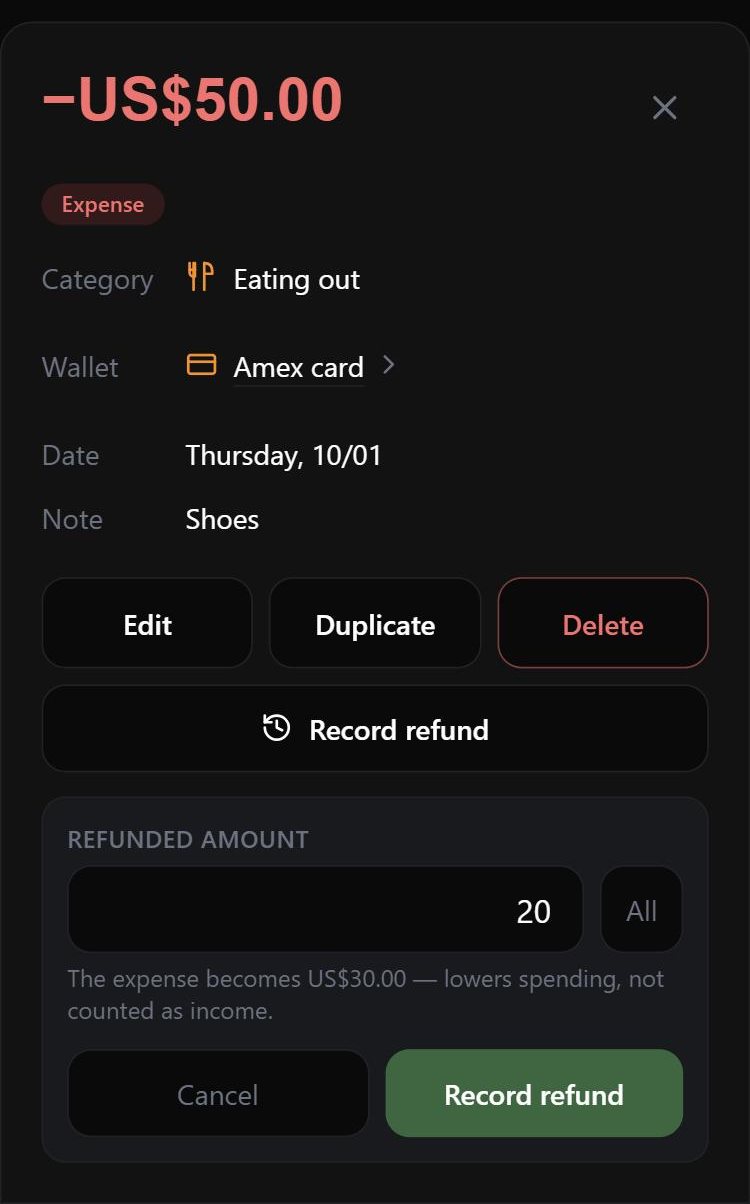
- Tap a transaction to see details: Edit, Duplicate, Delete (goes to Trash, can be restored).
- Tap the wallet name in the details to see that wallet.
- Record refund: returns, cancelled orders, partial refunds — the app reduces the original expense (a full refund moves it to the trash). A purchase refund is not income, so your spending report stays right.
VietQR transfers (Vietnam)
For households in Vietnam paying from a Vietnamese bank account:
- Save a payee once: More → Payees (name, bank, account number) — or right inside Quick Add.
- Record an expense from a bank wallet, pick the payee, tap Save & Transfer.
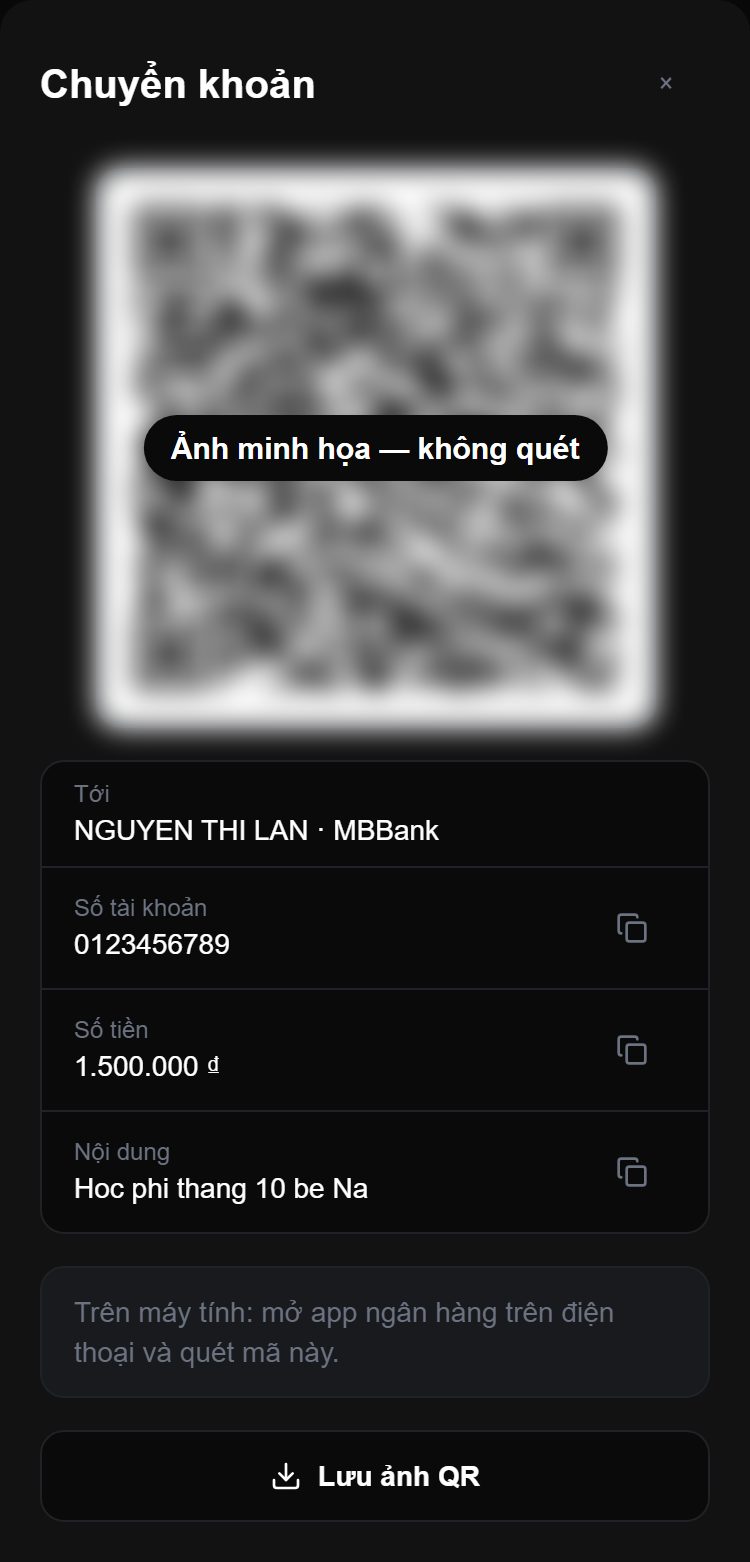
- The app shows a VietQR code with account, amount and note filled in. On a phone: Save QR image, then open your bank app → scan from image. On a computer: scan it with your phone’s bank app.
5. Wallets and balances
The Wallets page manages where your money sits. Wallet types: Cash, Bank, E-wallet, Credit card, Savings deposit, Fund, Investment, Other.
- Shared wallets: the whole family sees and records into them. Private wallets (if your household turns them on): only the owner sees them.
- The balance is always calculated from the opening balance and every transaction — you never type it in. Future-dated transactions don’t count towards today’s balance.
- Balance doesn’t match reality? Use Reconcile balance: enter what you actually have and the app records the difference. By default adjustments are not counted in income / spending reports or budgets.
- Didn’t record anything for a while and can’t remember what you spent? Turn on Count as income / spending when reconciling: the difference goes to “Unrecorded spending” / “Unrecorded income” so reports reflect what really happened. Pick a date within the unrecorded period. If money only moved between two wallets, don’t turn it on for both; a lower credit-card balance can’t be counted (it’s usually a card payment you forgot to record).
- Foreign currency, gold: create a wallet with its own currency; transfers to a wallet in another currency ask for the rate.
- A wallet’s quick keywords (e.g. “boa”, “dad card”) let you type “… boa” to pick it.
- Drag to reorder wallets; archive the ones you no longer use.
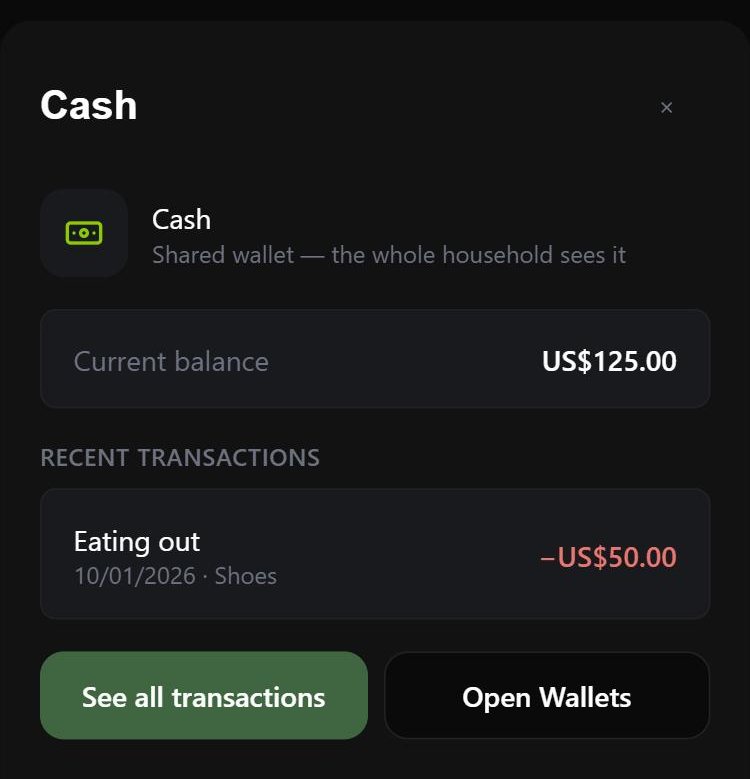
On the Overview, the Assets block adds up your wallets and money lent out, then subtracts card balances and money you still owe. If your household uses private wallets it splits into “Shared assets” and “My private wallets”.
6. Credit cards
- Create a Credit card wallet and enter the current balance owed, credit limit, statement day and days until due.
- Paying by card: record an expense from the card wallet — the balance owed goes up.
- Each cycle, enter the statement (statement amount, minimum payment) in the Card tab of Quick Add or in the card details. The app reminds you of the due date.
- Pay the card: one tap for the statement amount still due, the minimum, or the whole balance.
- Cashback / rewards credited to the card: record Income into the card wallet with the “Cashback & Rewards” category. It lowers the balance owed but does not count as paying the statement (the bank puts it on the next statement).
- Returns, cancelled orders: use Record refund on the original expense.
- Cash advances are done on the Wallets page (transfer from the card to another wallet) — they usually carry high fees and interest from day one.
7. Instalments
Recurring → Installment. Don’t record the purchase itself separately — the app records each instalment as spending.
- Via credit card: the first instalment is the first statement date after the purchase (bought on Aug 3, statement on the 15th → first instalment Aug 15). Instalments before the day you added the card to the app count as already paid (they are in the opening balance). Each instalment is posted to the card on its statement date.
- Paid directly (finance company, bank transfer): when due it appears under “Needs attention” for you to confirm. Turn on bank auto-debit if the money is taken straight from your account.
- Flat interest rate (% per month): enter it and the app works out the instalment amount. The figure on your contract wins — you can edit it.
- Conversion fee: as a % of value (how card issuers usually quote it) or a fixed amount.
- Progress shows “On statements 2/6 · … left” (card) or “Payment 2/6 · … left”.
8. Categories and automation rules
- A new household starts with a set of starter categories (groups → categories). Add, rename, recolour / change icons, merge and archive on the Categories page.
- Automation rules: “description contains X → category Y”. The suggested rules come with thousands of keywords and brand names (Starbucks, Uber, Amazon, Netflix…), including brands popular in your household’s country.
- Rules run when you quick-type and when you import statements / files. Rules you create always win over suggested ones.
9. Budgets
- Set monthly limits per spending group (“envelope” style).
- Today’s budget on the Overview = what is left divided by the days left in the month.
- The app warns at 80% of a limit and turns red when you go over.
- Budgets only count spending from shared wallets — a family member spending from a private wallet doesn’t blow the shared envelope.
- Only the owner / admins can set budgets.
10. Bills and recurring items
- The Recurring page: rent, power, water, internet, school fees, salary… monthly / quarterly / yearly.
- When due, an item appears under “Needs attention” and on the Overview: tap Confirm (edit the amount if it differs), Remind later or Skip this period.
- Turn on notifications (Settings) to be reminded on your phone / computer.
- Coming up on the Overview collects bills, instalments and card due dates for the next 30 days.
Prepaying several months (internet, insurance…)
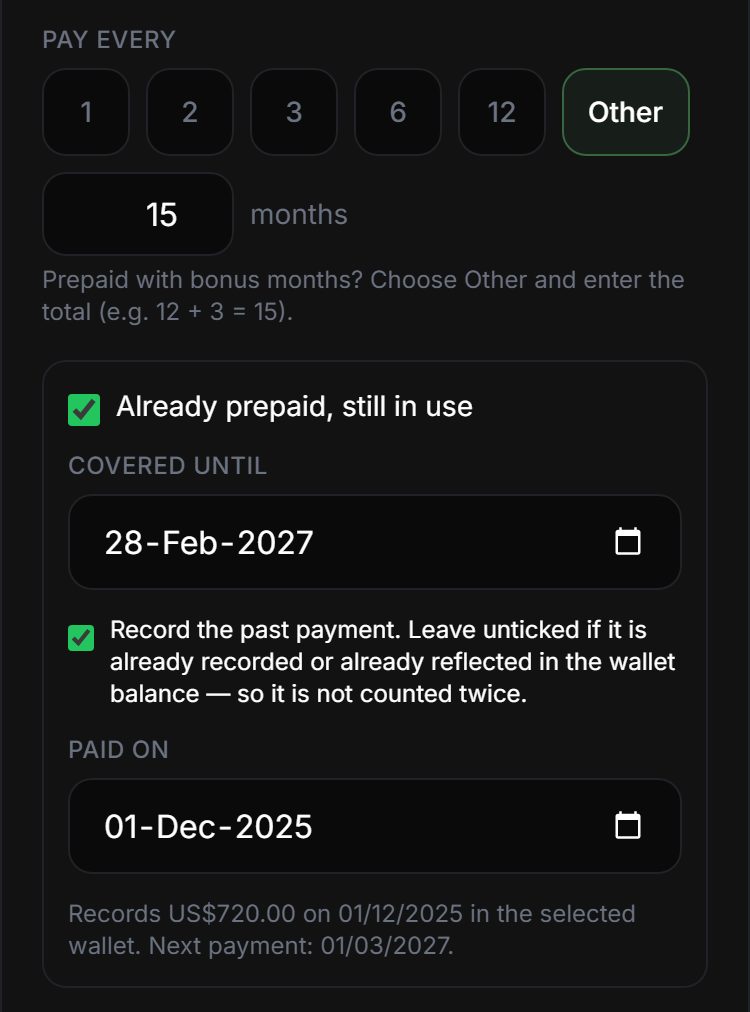
- Pay every: pick 1 · 2 · 3 · 6 · 12 months, or Other for any number. Paid 12 months and got 3 free → enter 15.
- Already paid before you started using the app: tick “Already prepaid, still in use” and enter the end date — the app works out the next payment.
- Not recorded yet? Also tick “Record the past payment”. Already recorded (or already in the wallet balance)? Leave it unticked so it is not counted twice.
- Different deal at the next renewal? When confirming, change “This payment covers … months” — later periods follow the new number.
Record automatically on a card or account
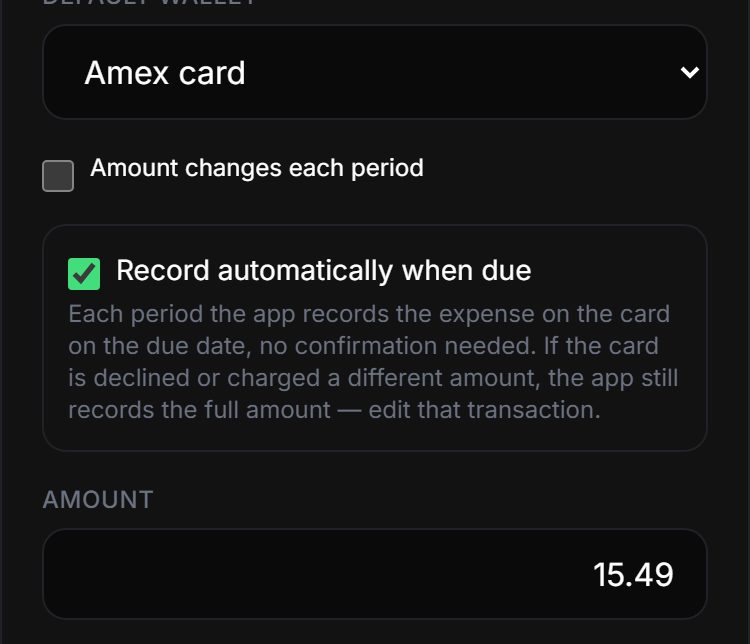
- For expenses charged straight to a credit card or bank account (Netflix, insurance, direct debits): turn on “Record automatically when due” — the app records it on the due date, no confirmation needed.
- Automatic items skip “Needs action” and due reminders; they show an Auto label.
- Fixed amounts only. If a card is declined or charged a different amount, the app still records the full amount — edit that transaction.
11. Debts, goals and savings deposits
- Debts: record money lent and borrowed, and each repayment. What is still owed counts in your net worth.
- Goals: set an amount and a deadline (a car, a trip fund…) linked to a wallet — progress is that wallet’s balance.
- Savings deposits: a Savings deposit wallet has a start date, term, interest rate and maturity date; the app reminds you before it matures.
12. Reports
- Spending by category, by month, income vs. spending, trends; pick any period.
- Shared wallets only by default; flip the switch to include your private wallets.
- Export the aggregated figures as CSV.
13. Family and privacy
- Invite family: Settings → Members → create a 6-digit invite code (expires after 7 days).
- Roles: Owner (everything, manages the plan), Admin (like the owner except the plan), Member (records, creates private wallets), Viewer.
- Private wallets are a household option (the owner turns them on in Settings). Their transactions are visible only to the wallet’s owner — not even the household owner can read them.
- The activity log shows who added / edited / deleted what.
14. Import, export and data safety
- Import / Export page: download the Excel template, fill it in and import; import bank statements; export all your data.
- Trash: restore deleted transactions.
- No connection? You can still record — expenses and income are queued and sent when you’re back online (transfers between wallets need a connection).
- Install the app on your phone’s home screen to open it like a regular app.
15. Plans and billing
- Free: 1 person, the basics. Pro: 1 person, every feature. Family: several members, extra seats available.
- See and change your plan in Settings → Plan & billing. Features not in your current plan show an upgrade invitation when you reach them.
- Payments go through Paddle (our international payment partner); your card number is entered in Paddle’s window and LittleSaving never stores it.
16. FAQ
A wallet’s balance doesn’t match the bank?
Look for missing / duplicate transactions on the Transactions page (filter by wallet). If you just need it to match, use Reconcile balance — adjustments don’t skew your reports.
Is my instalment counted twice in the card balance?
The card’s opening balance already includes the instalments that were on statements before you added the card — the app treats them as “already paid” and doesn’t add them again. Instalments not yet due sit under “Borrowed, not repaid”, not in the card balance.
I recorded a purchase refund as income?
Delete that income and use Record refund on the original expense, so both spending and income reports are right.
Can my family see my private wallets?
No. Private wallet transactions are visible only to you; the “Shared assets” figure is the same for everyone.
Where do I change language, currency or time zone?
Settings. Language is yours alone; currency and time zone belong to the whole household.
Feedback or a bug report?
Settings → Feedback & bug reports, or email vancongit87@gmail.com.